Barcode billing: faster checkout and fewer mistakes for your shop
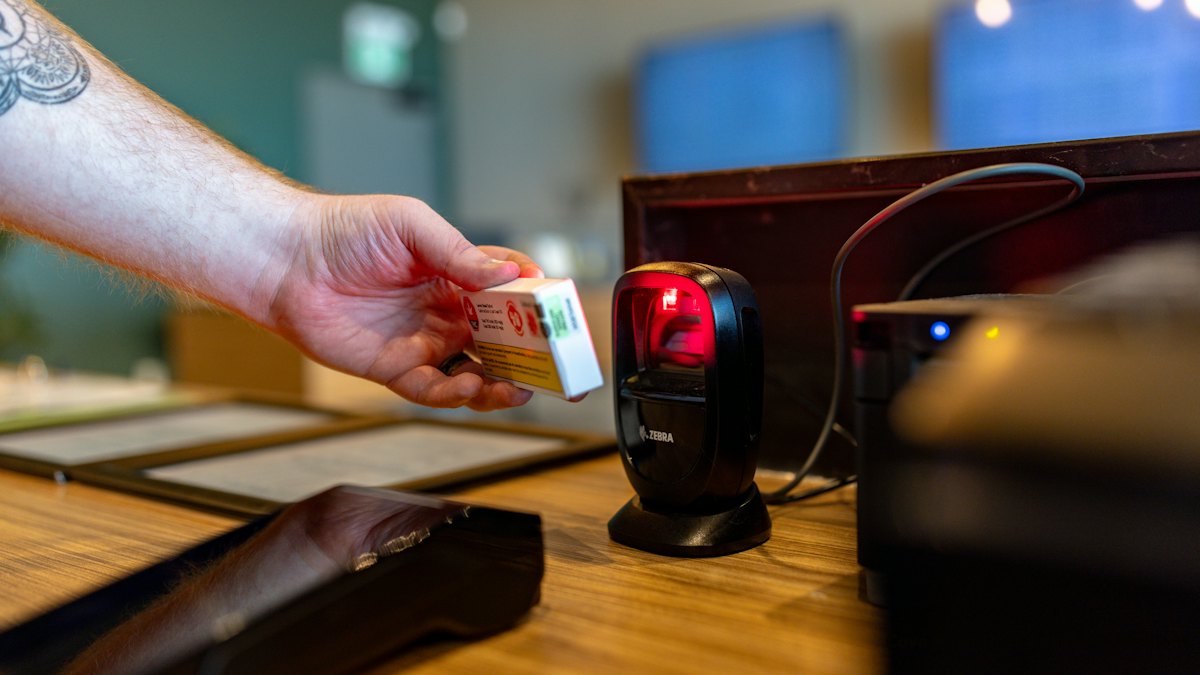
Typing item names at the counter is slow, and it's where most billing mistakes happen: wrong variant, wrong size, wrong price. Barcode billing fixes both. A scan takes under a second and always picks the exact item.
What you need
- A barcode scanner. A basic USB scanner works like a keyboard: it "types" the code and presses Enter. No special driver needed.
- Billing software that recognises barcodes on its item list and adds the item to the bill on scan.
- A label printer (optional) for items that don't come with a barcode.
Choosing a scanner
| Type | Good for |
|---|---|
| 1D laser or linear (USB) | Most packaged goods; cheapest and fastest |
| 2D imager | Also reads QR codes and barcodes on phone screens |
| Wireless or Bluetooth | Scanning bulky items away from the counter |
| Presentation (hands-free) | High-volume counters like supermarkets |
Step 1: use the barcodes already on products
Most packaged goods carry an EAN-13 barcode from the manufacturer. When you add the item to your billing software, scan its barcode into the item's barcode field. From then on, scanning at the counter finds it instantly. If the same product comes in several sizes, each size has its own barcode, so set each up as a separate item.
Step 2: print labels for your own items
Loose goods, garments, hardware and products you repack need your own codes. Good billing software generates a code for each item and prints labels with the name, price and barcode on standard label sheets or a label printer.
Step 3: set the counter for speed
- Keep the cursor in the scan or search box so the scanner always "types" into the right place.
- Scanning the same item twice should increase the quantity, not add a new line.
- For items sold by weight, use a quantity shortcut after scanning.
Common mistakes
- Same barcode on two items. The scan picks the wrong one. Barcodes must be unique in your item list.
- Scanner adds extra characters. Some scanners send a prefix or suffix. Configure it to send just the code and Enter.
- Labels that won't scan. Print too small or too faint and scanners struggle. Use the recommended label size and good print density.
- Price changes not updated. If the shelf label shows the price, reprint labels after a price change.
The payoff
Faster bills mean shorter queues. Exact items mean accurate stock, so your inventory numbers become trustworthy. And new cashiers learn the counter in minutes instead of memorising hundreds of item names.
Kashvo's POS adds items on scan, finds items by name or code when there's no barcode, and prints barcode labels for your own products. Plug in a USB scanner and start billing.